For students
How to join your group, do your activities and homework, and book sessions.
Joining
On the front page choose I'm a student. Type the class code your teacher gave you (or open their invitation link), then choose a username, the name your teacher will see, and a password. If you have another group later, Join a group in the group card at the top of the menu takes its code.
Home (at the top of the menu) is where SKRM Learn opens: your week (a tick for each day you practised) and all your classes at once, with homework still to do (the soonest due first), this week's sessions and quizzes to finish. Click one to open it. During a session, SKRM Learn opens straight in its class instead.
My work in the menu holds everything you are given to do in the class: Activities, Homework, Quizzes, Practice and your Progress, switched by the row at the top of the page (homework to do is counted there).
On a phone, your main pages (Home, My code, Boards, My work, Messages) are along the bottom of the screen; the menu has the rest. In a class that isn't about code (English or History, say), My code is called In class: the activity your teacher has set for the class now.
Not in a class at the moment
If your teacher removed you from a group, or the group was closed, SKRM Learn shows Join your class: type the class code your teacher gives you (capitals and the dash don't matter) and press Join, or open the link they sent. Meanwhile you can try Python on the same page; that code is kept in your browser until you press Save to my library, and Open from my library brings a saved file back.
Your work from the class you left is in My library, in a folder called "From" and the
group's name: your code (as .py files), your writing and your own boards. An account that is
in no class and not used for a year is deleted, with its library.
My code and My activities
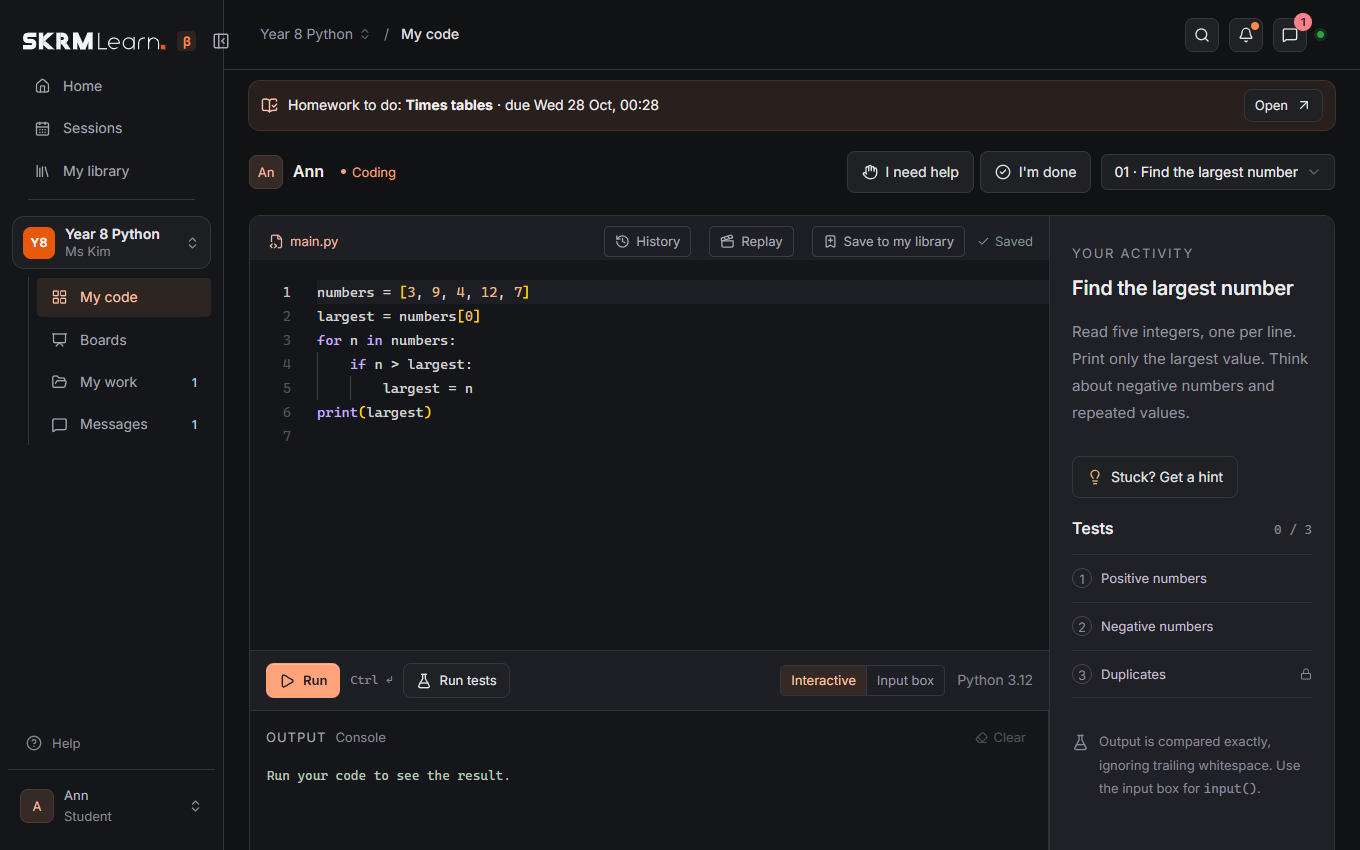
My code is your current activity: the instructions, your code and the output. Run runs your program; it may ask you for input. Run tests checks your answer against the activity's tests. Your code is saved as you type. On a Mac, iPhone or iPad with Safari, a program can't stop to ask while it runs: type the answers in INPUT first, one per line, then press Run. If Run says WebAssembly is turned off, Safari's Lockdown Mode is on: turn it off for this website (iPhone or iPad: aA › Website Settings; Mac: Safari › Settings for this website). My activities lists every activity you were given and how far you got.
While your teacher is live, their code shows beside yours; Copy puts it into your file. Your teacher may also type in your code with you: you both see each other's cursor.
Stuck? Press I need help above your code: your teacher sees it at once. Press I'm done when you have finished. Press either again to take it back. A timer at the top shows how long is left when your teacher sets one.
Replay above your code plays back how you wrote it, like a video.
Working in a team? Your teacher may pair you up: you then share one file and both type in it, each seeing the other's cursor.
Practice has many more activities to do on your own, from easy to hard: pick one by level or topic, and Run tests tells you at once whether your answer works.
Progress (in My work) shows your week and streak (days in a row you practised), how far you got in the class's activities, homework and Practice levels (click one to go there), and your badges: some for passing activities, some for practising days running, a perfect quiz, homework on time and team work. Faded ones are still to get: point at one to see how.
Deleted something by mistake? History above your code lists earlier versions (kept every few minutes, and before a big part is replaced). Choose one and Bring back this version. Your own board has History… too, in its menu (☰).
My homework
Each piece has a due date. Open it, do it (code or on a board), and press Hand in. You can Take back to change it until your teacher checks it. Then you see your mark and the teacher's feedback. Homework to do at the top of your pages shows the soonest due.
Boards
My board is your own whiteboard; only you and your teacher see it. Class boards your teacher opened for you are there too. See Whiteboards.
Save to my library (on your own board, and above your code in My code) keeps a copy in My library: it stays yours, whatever class you are in.
Quizzes
Answer one question at a time; Check tells you at once. You may have several tries; once right or out of tries, the right answer and an explanation show.
Today's revision at the top of Quizzes: questions you got wrong (or right only at a second try) come back the next day. Right again, they come back after a few days, then a week, then two; after that you know it.
Sessions and messages
Sessions shows your teacher's free times to Book, and your upcoming sessions; you can cancel your own bookings up to the hours your teacher set. Messages has the group's chat and a private conversation with your teacher.
Video calls
When your teacher starts a call, Join call appears. You come in with microphone and camera off; turn them on when asked.
Forgot your password?
Ask your teacher: they can reset it from the Members page.