The classroom
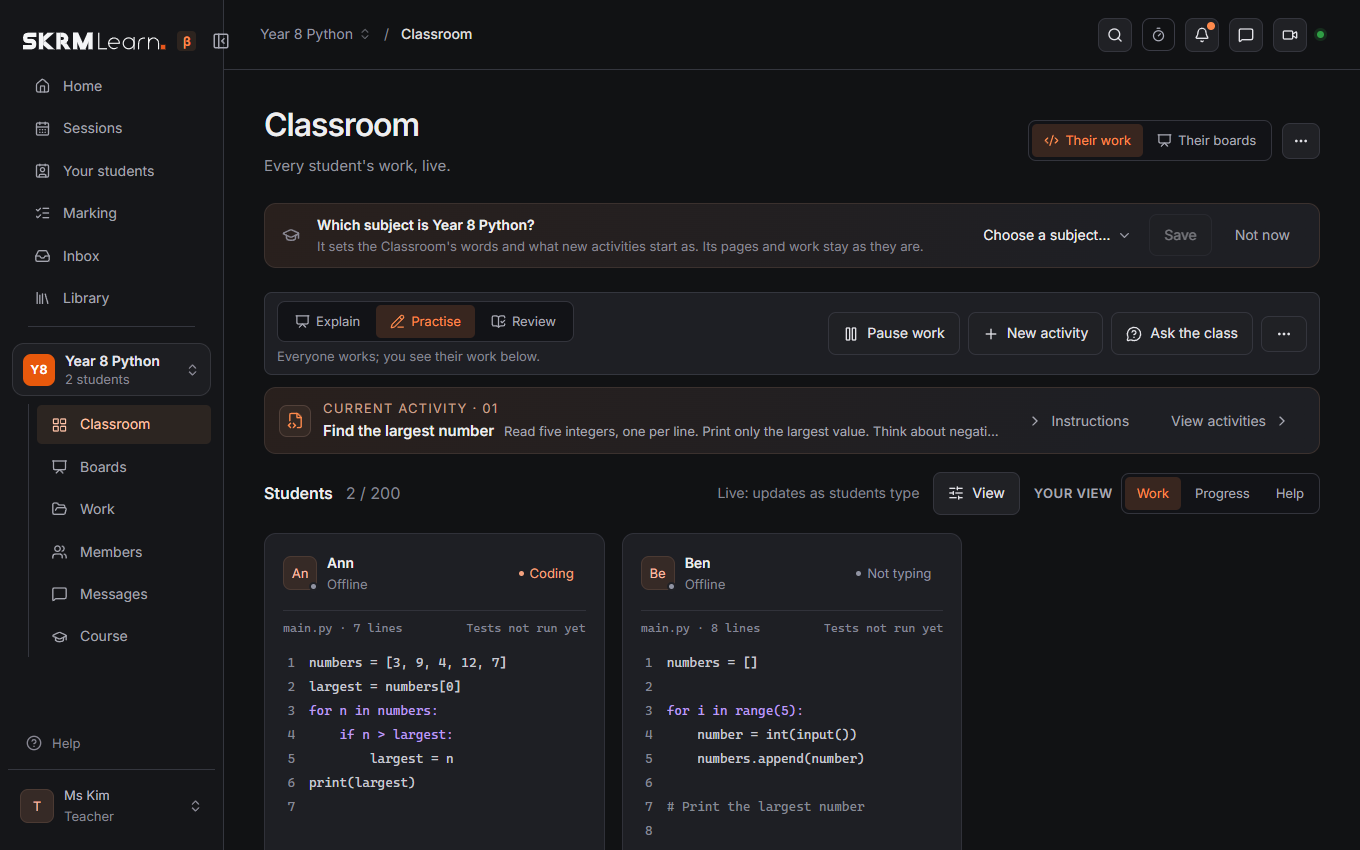
The Classroom page is where the session happens: every student's code (or board) live, and your tools to work with them.
Load a lesson… at the top brings a lesson of your library into the group: its boards (hidden until you share them), activities, homework and quizzes, each ticked to bring or not (see Your library). During a session, the line with its lesson has Load… too.
Students' code, live
Each card is one student's file, scrolling as they type. Edit opens it so you can type in it together: both of you see each other's cursor, and what each types appears for the other within a moment. Done ends it. In a Boards only group the cards show each student's board instead.
I need help and I'm done: students press these above their code. Who needs help shows in Waiting for help above the cards, longest waiting first: click a name to open their code, and × when you have helped them. View (above the cards) holds the choices of what you see: Show picks whose cards you see (needs help, errors, done, not typing now); Order puts them by name, needs help first, fewest tests passed, or longest since typing. A new class activity clears "I'm done".
Note on a card is your own note about the student (the same as on their page); they never see it.
Ask the class (in the lesson's toolbar) puts a question at the top of everyone's page: yes / no, how sure they are, your own choices, or a short answer for an exit ticket. You see the answers come in, with names; Show the results shows the class how many chose each (never who). Pick a student (in the toolbar's ⋯) chooses one at random among those here, not the same one twice running.
Show to the class (the screen icon on a card) shows that student's work to everyone in the group, with their name or without it, above whatever page they are on. It follows their typing until you press Stop showing. The speech bubble sends the student a private comment about the activity: it arrives in your messages with them. While the class is doing a quiz, each card shows how far the student has got and how many they have right.
With one student's code open, the list of students on the left folds to their faces (the button at its top), leaving the room to the code and the activity. Their code opens out of their card, and Back (or Esc) puts it back.
The lesson's toolbar
Once a student has joined, one row above the current activity holds what changes the whole class: the lesson mode, Pause work, New activity and Ask the class. Its ⋯ has Share example (in programming), Pick a student, Load a lesson…, Sum up the lesson… and Stop activities for everyone. Instructions on the current activity shows them in full, or on one line again.
Explain, Practise, Review
The lesson mode puts the class in one of three states with one click:
- Explain: in programming, your live editor opens and students see your code beside theirs; in other subjects you choose a class board (or start a new one) and everyone sees it. Nobody is paused: they can keep working. Use Pause work too if you want their full attention.
- Practise: everyone works; you watch their work.
- Review: work is paused and Progress shows who passed what, to go through the answers together.
While you explain with a board, your Classroom shows the board beside the students' work, on one screen (a call sits beside it too). Full size opens it on Boards; Stop explaining ends it. In a group without a Boards page, the board opens above every page for everyone.
They are also in Search, Ctrl+F (type "explain", "practise" or "review").
Work, Progress and Help
Three ways to see the class, above the cards:
- Work: everyone's code, as cards.
- Progress: every student against every test of the class activity. A green tick is a test passed, a red cross a test failed, an empty square one not run yet. Each test shows how many passed it, and the line above says which test the class finds hardest.
- Help: who needs you, most urgent first: raised hands (with Helped), runs that stopped with an error (said in plain words), students quiet for five minutes, and those who haven't started. The number on Help counts hands and errors.
Your choice is remembered in this browser.
During a session (from ten minutes before it), a line above the class's controls names the lesson it teaches (chosen in the session's window, on the Sessions page). Open the lesson shows its notes, materials and plan; each step's Start sets the class timer to it.
Rewind the lesson… (in View, on Work) opens a timeline of the last two hours of the class activity: its bars show when the class was typing. Drag it back to see everyone's code as it was at that moment, for example to see how far the class had got before you explained something. Back to live shows the code as it is now.
Cards per row (1, 2 or 3, in View) sets how many fit across. Their code | Their boards switches between the students' code and their boards (in an Activities and boards group).
Running Python
Students press Run to run their code in the browser; nothing is installed. A program may ask for input; prepared input lines can be typed first. Run tests checks the activity's test cases and shows which pass.
Resting the pointer on a word in the code (for, print, .append, math.sqrt) shows what it
does, in plain English, with a short example.
Your tools
- Go live (Follow me): your own editor opens; students see it beside their code as you type, and can copy it into their file. Stop sharing when done.
- Pause work: students can't type, run code or draw on their boards until you press Resume work (homework carries on).
- Explain: in programming, your live code beside theirs; in other subjects, a class board you choose opens on every student's screen. Their work is not paused. Stop explaining (beside the board, or in the line above your other pages) ends it.
- Timer (at the top): a countdown everyone in the group sees, e.g. 10 minutes for an activity, with what it is for. Press it again to stop it.
- Share example: shares a read-only example without touching their work. Each student's card lights up as it arrives.
- Call: a video call with the group (see Video calls).
- Student preview: a separate window showing the student's side of your group.
- ⋯: Group settings, Invite students.
Activities
A student's page shows their streak (days in a row they practised) and the badges they have.
Teams… on an activity puts students in pairs or small teams: each team shares one file and types in it together, seeing each other's cursor. No teams gives each their own file back.
An activity is a piece of work with instructions. Activities › New activity asks first what students do, starting with your subject's own (maths: a board): Document (they write, you can type and comment with them), Board (each student draws on their own copy of a board: a worksheet, a diagram to label, working to show; their card shows a picture of it, and you open it to draw with them), Code (starter code and tests), Questions (a quiz, written on Quizzes) or a Spoken answer (each student records one; you listen and mark it). A board starts empty, as a copy of one of the group's boards, or from a worksheet you upload there and then: a PDF (choose its pages; a preview shows them) or a picture. The Library's New library activity asks the same. New activity writes one; Send gives it to the whole class or to chosen students (each gets their own copy). You can change an activity any time: students' saved code is kept. From the library… takes an activity from your Library. Under the form, Check says what would make the activity clearer (a missing instruction, a test without an expected answer, no hidden test). History in an activity's edit window shows its wording before each change.
Hints (up to five, in the activity form) help a student who is stuck without giving the answer away at once: beside their code they press Stuck? Get a hint, then Next hint, one at a time. Start with a nudge and end nearly at the answer. In a student's code you see which hints they opened, and Progress shows the count beside each name. The sample activity comes with three.
Replay above a student's code plays back how they wrote it, change by change: the marks on its timeline show where they stopped to think (a minute or more).
History above a student's code, and History… in every board's menu (☰), brings back an earlier version, e.g. for a student who deleted their work. What is there now is kept too, so it can be undone.
Recently deleted, under the list of activities (and of homework), keeps a deleted activity for 30 days with every student's work in it. Put back brings it back as it was, without sending it again.
Documents
For writing (an essay, answers to questions, notes), make a Document activity: New activity (or New homework) › Document, with instructions and, if you like, a starting text (a heading, questions to answer, a passage to work on). Each student gets their own copy.
They write with headings, bold and italics, a highlighter, lists, links and tables; the word count is under the page. You see each student's writing on their card as they write. Open it to type in it with them: you both see each other's cursor and typing. If their connection drops, their typing is kept and sent when it is back.
While work is paused students can read their document but not change it. Document homework is handed in like any homework and marked beside the document.
Comments: select a passage and press Comment. The comment shows beside the text (also while you mark homework), and your student sees it there and can reply. Resolve puts it away when you are both done with it.
Suggest changes (in the toolbar, for you): while it is on, what you type shows in green as words added, and what you delete stays, struck through in red, as words to delete. Your student (or you) clicks a change and presses Accept or Reject, or Accept all / Reject all above the page.
History under the page lists earlier versions (kept as they write, and when homework is handed in): look at one, and Restore it if work was lost. Download makes a Word file, or opens the print window, where Save as PDF makes a PDF.
Python in SKRM Learn
Code runs in the browser with Python 3.12 (Pyodide), so nothing is installed and nothing runs on our server.
- Works: everything in Python's standard library that doesn't need a window, a network or
other programs:
math,random,statistics,fractions,decimal,datetime,time,string,re,itertools,collections,functools,json,csv,textwrapand more.input()andprint()work as in a terminal. - Also works:
numpy,pandasandmatplotlib. The first run that imports one loads it (a few seconds, once per visit); a chart drawn withmatplotlibshows as a picture under the output (plt.show()or not). Charts aren't kept with the work, and tests compare printed text only. - Doesn't work:
turtleandtkinter(no window), the internet (urllib,socket,requests), other programs (subprocess,os.system), threads and processes, files kept between runs, and other packages from outside the standard library (e.g.scipy,sklearn). - Limits: a run stops after 8 seconds (the clock pauses while it waits for
input()), so an endless loop never freezes the page; Stop ends it sooner. - Errors are explained in plain words above Python's own message, e.g. "A colon is missing (line 3)". A failed test shows Expected beside Your output, and why it differs.
Writing good tests
Each test gives the program some input and says exactly what it should print. Output is compared exactly, except spaces at the ends of lines.
- Start with an ordinary case, then the cases students forget: negative numbers, zero, a
number repeated, the smallest and largest allowed. For "the largest of five numbers":
3 8 2 5 1 → 8,-8 -2 -5 -1 -9 → -1,7 7 2 7 1 → 7. - One value per line in Input, in the order the program reads them with
input(). - Say the exact format in the instructions ("print it with two decimals":
6.00, not6). - Hide a test or two (the lock): students see that it passed or failed, not its answer, so they solve the activity rather than the tests.
- Check with Student preview before sending: the activity exactly as a student gets it.
Where you are is in the address
The browser's Back and Forward move through SKRM Learn: pages, groups, the open board or student, and the tab chosen on Sessions or in the Library. A refresh stays where you were, and the address can be copied. Back also closes an open window instead of leaving the page.
Next: Whiteboards · Homework and marking