Whiteboards
Every group has shared whiteboards for drawing, writing, maths and files, live for everyone on them.
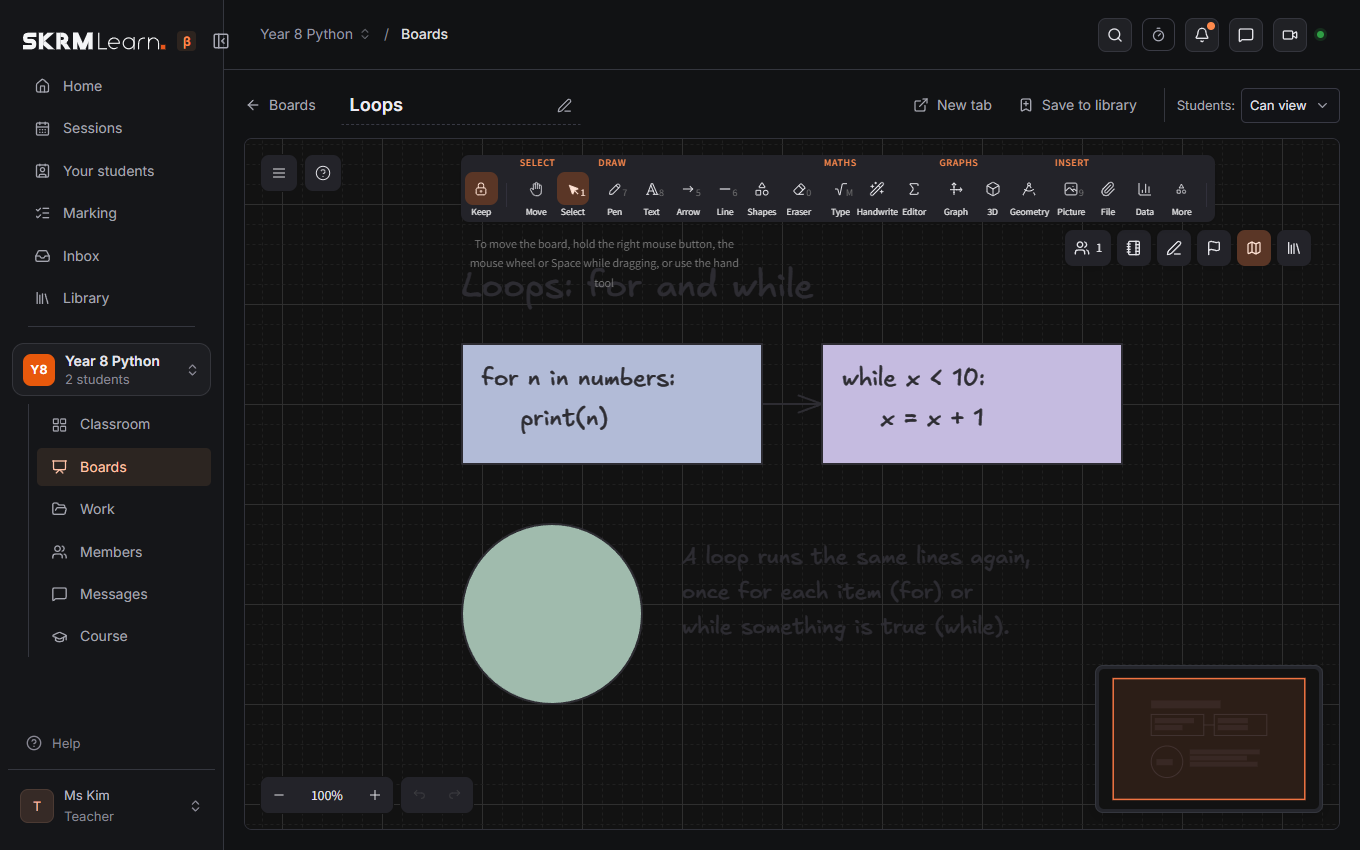
Class boards and students' boards
Boards lists the group's class boards. Each is Hidden from students, Can view or Can draw (the Students: choice at the top of the board). New board makes one, empty or From a template….
Every student also has My board, which only they and the teacher see. Board view on the Classroom page shows all of them live; the teacher can draw on one from its card or open it full size.
Drawing
The toolbar has the usual shapes, lines, arrows, free drawing and text. Keep drawing (the padlock, Q) keeps the tool after each shape. Handwrite (handwriting recognition: the wand, under Maths) reads your handwriting a moment after you stop, and turns it into a typed formula or text (undo brings the handwriting back). For neat shapes and lines, see Tidy shapes below. Show the grid (the board's menu, ☰) is a guide only. Map (top right) shows the whole drawing small. Panels can be moved and resized.
Pages (notebook)
Pages at the top right turns a board into an exercise book: Add page puts an A4 page under the last one, with Plain, Lined, Squared or Dotted paper. The list shows a small picture of each page: click one to go to it. The page in view is outlined. Each page can change its paper; its ⋯ moves it up or down, duplicates or deletes it. PDF makes each page of a PDF a page here, to write on. Export to PDF (the board's menu) prints each page as an A4 page.
Teachers: the padlock beside a page locks what is on it as the worksheet: students write on the page but can't move, change or delete what you put there. The padlock again unlocks it.
Pens: the Highlighter; Keep this pen keeps the colour, thickness and see-through you have chosen as a pen, one click away next time (in this browser). Pen only, on a tablet with a pen: only the pen draws, so a hand resting on the screen leaves no marks; a finger moves the board.
Tidy shapes: draw a line, circle, box or triangle with the pen and hold it still at the end. A dashed blue outline shows the neat shape; lift the pen and it takes the place of your drawing. Undo brings your drawing back. Turn it off in Pens if you don't want it.
Maths
- Formula (M): type a formula in the visual editor (fractions, roots, powers, Greek letters, matrices) or in LaTeX; it goes on the board in the pen colour. Select a formula and Edit formula changes it. Ctrl+M while typing a text turns the words typed so far into a formula.
- Axes and graphs: axes with a chosen range, and the graph of a function typed in plain
maths (
y = x^2 - 3,sin(x)), more than one on the same axes, with a table of values. Put a letter in it (a(x - h)^2 + k,mx + c) and it gets a slider: drag it and the graph changes. Select the graph on the board to move the sliders again; students watching see it move. Undo puts the last change back. - 3D graphs: a surface
z = f(x, y)that can be turned. The teacher's Show to the class puts it above everyone's page: as you turn it, theirs turns too (they can untick Follow my teacher to turn their own). - Charts, timelines and maps (the chart button): type or paste a small table (
Dogs, 12on each line) for bars, a line or a pie; events (1066 | Battle of Hastings) for a timeline, spaced by their years; or choose the world or a continent for a blank map to label, with countries shaded if you like. A map can have layers: latitude and longitude, the equator, tropics and polar circles, countries' names, capitals. Explore… shows the world to drag and zoom, naming the country under the pointer; Use this view and the map is of just that part. Right click a chart or timeline › Edit to change it. - Science (the same button): a chemical equation typed plainly,
2H2 + O2 -> 2H2O, goes on as 2H₂ + O₂ → 2H₂O, and you are told whether it is balanced; ready-made molecules drawn as structural formulas; simulations (a projectile, a pendulum, waves) with sliders, and a picture of one for the board. Right click a picture › Add labels… for arrows and words to drag onto its parts, or numbered blanks for students to name. - Geometry tools (the compass): a ruler, protractor and compass that measure what is drawn.
Pictures and files
Add file, or drop files on the board: pictures go on the board; a PDF's pages become pictures (you choose how they are laid out) with a card to download the PDF; Word, Excel, PowerPoint, text and other files become cards to download. Sound and film (MP3, MP4 and the like) become a red ▶ card that plays them. Sound and film kept in your library play there too: click one. Export to PDF (the ☰ menu) saves the board.
The library
Library › Boards & files: your own boards, elements and files in folders, with tags and a search, to reuse in any group. Save to library on a board keeps it; Elements keeps a selection. Send to students' boards puts a selection on every student's board at once.
Together
Everyone on a board sees each other's pointer and selection. New tab opens a board on its own page, handy on a second screen during a call.
Replay and the zoom box
- Replay… (the board's ☰ menu) plays the board back in the order it was drawn, a pen stroke at a time: Play, a slider to go anywhere, and three speeds.
- Zoom box (Pens): write large in a strip along the bottom of the board, with a pen or a finger, and it goes on the board smaller, in the dashed box. Next and New line move the box; writing near the end of the strip moves it on by itself.
Next: Homework and marking · Video calls