Homework and marking
Homework is an activity with a due date and points, done at home, handed in and marked.
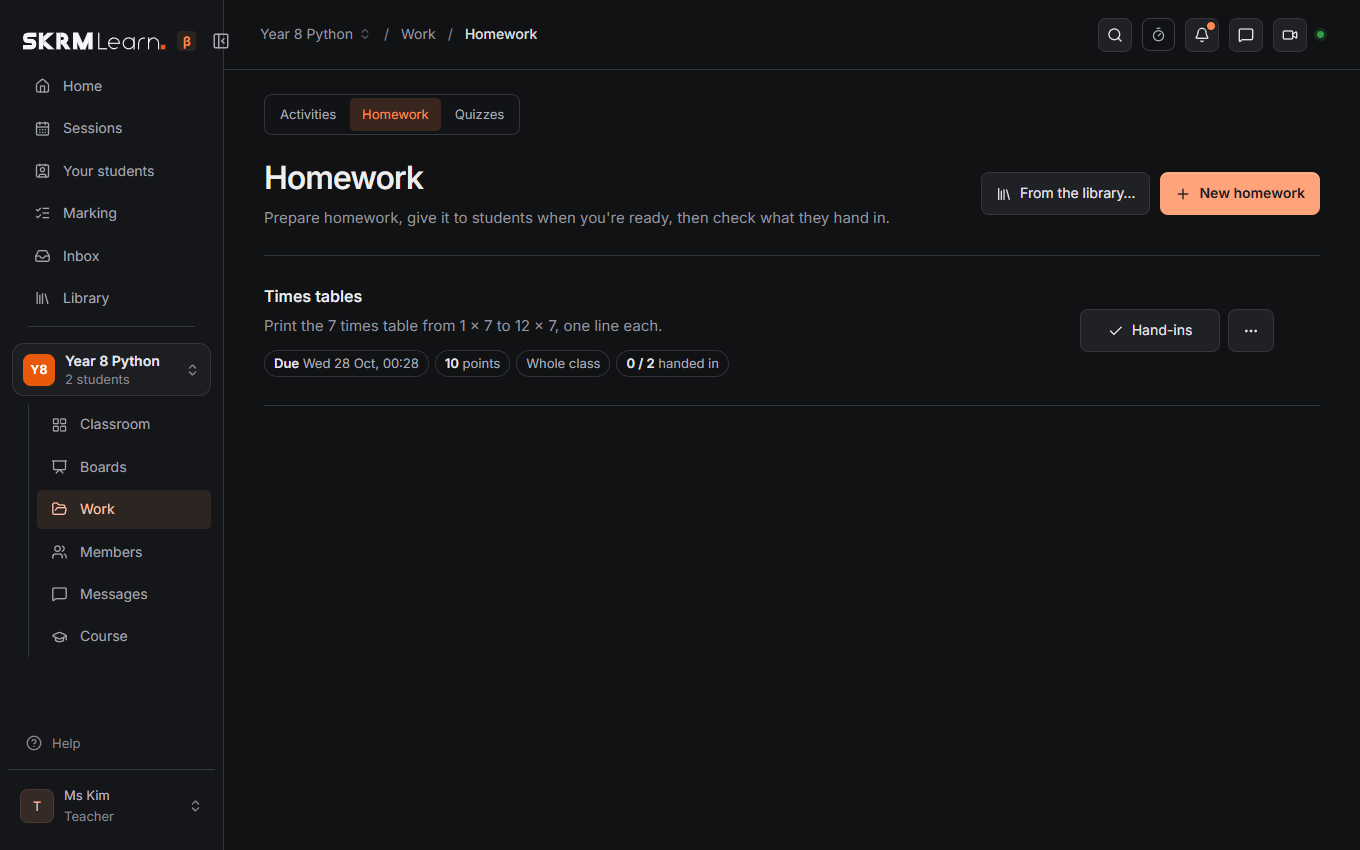
Giving homework
Homework › New homework: a title, instructions, the due date and how it is marked. In a Activities and boards group you choose Code, Board or Document homework. Code homework has starter code and tests; board homework starts from an empty board or a copy of one of your class boards (a worksheet: put it, or a PDF, on a class board first).
Marked: With points (and a rubric if you like), or Done or not, no points, for essays, working on paper and practice. Then you mark it with Mark as done and your feedback, and the student sees "Done".
Give it to the whole class or to chosen students, or keep it as a draft and give it later. Parents of the students it went to are emailed about it (if they have an address and want it).
What students see
My homework lists each piece with its due date. A student opens it, works on it (code or board), and presses Hand in. Until you check it they can Take back and change it. Late hand-ins are marked as late. Homework to do at the top of their pages shows the soonest due. When handing in they can write how it went (optional): you see it while marking. Work returned for changes keeps each earlier hand-in, with your feedback on it, under Earlier hand-ins.
Checking
Hand-ins (the ⋯ beside it has Choose students…, Edit and Delete; a deleted homework stays in Recently deleted under the list for 30 days, hand-ins and marks too) lists who handed in what; Check opens the student's work with the marking panel at the top of the side column (the activity itself is folded under it). For board homework your pen is red and what you add is a correction the student can't change. Give a mark (points) and written feedback, or Return for changes so the student can try again.
Check next goes to the next piece waiting, oldest first; Show picks whose work is listed (to check, draft marks, not handed in, late, marked).
Rubric (in the homework's form, optional): what you mark it on, each line with its points. When marking, you give a score for each line and they add up to the mark. Students see the lines before handing in, and each line's score with the mark.
Save as draft keeps a mark only you see; Send marks on the homework's page sends every draft at once (handy for marking the whole class first). Send mark sends one straight away.
Saved comments: Save as a comment keeps the feedback's last line; click a saved comment to add it to the feedback for the next student.
Topic (on homework and activities, optional): each student's page shows how they do in each topic.
Students see the mark and feedback in My homework; parents see them on their page. Drafts never reach students or parents.
Checkpoints
A checkpoint is a named place on a board to come back to ("12 Oct: loops"), added with the flag at the top right of a board. Homework can be tied to one, and Write up… on a session records the checkpoint it reached.
Quizzes
Quizzes are checked the moment students answer: number, words, one choice or several choices, with tries per question and an explanation shown once done. Results fills in live as students answer. See the Quizzes page.
More kinds of question:
- Fill in: write each gap in the question as
[[answer]]([[colour|color]]when several count). For a table, put each row on its own line with|between the cells. - Matching: pairs (a word and its translation, a term and its meaning); students choose each partner from a list.
- Order: the items in the right order; students see them mixed up and put them in order.
- Label a picture: add the picture, click on it to mark the places, and name each one.
- Long answer: a paragraph or more, sent once. In Results, To mark opens it: give points and a comment, and your student sees both.
- Speaking: students record an answer (up to 5 minutes), listen to it and send it. You listen from To mark in Results and mark it the same way. While listening, Note the time in the recording puts the time into your comment; your student can click it to hear that moment. Add a sound file to the question for a listening activity; students can play it slower.
- Flashcards: a front and a back. Add flashcards takes many at once, one per line, like
le chien | the dog. Students turn each card over and say whether they knew it; the ones they didn't come back in their revision.
Sound and film (MP3, MP4 and the like, up to 50 MB) can go with any question and play with it.
A wrong answer in parts says how many parts were right, so students know how close they are.
A question can have a picture or file (Add a picture or file, under the question): a diagram, a graph or a photo shows with the question; other files (PDF, Word, a spreadsheet) are there to download. Students see it once you give the quiz to the class.
Next: Whiteboards · For parents
AI drafts
When your SKRM Learn has AI turned on, ✨ Draft … with AI buttons help you prepare: feedback on a piece of homework (and a mark it would give: the mark is yours), questions for a quiz on a topic or from what the class got wrong, a lesson plan, a report's comment. Each is a draft for you to check and change; nothing reaches a student unless you send it. Student names are never sent.