Your account
Preferences, your email address, Google, what you are emailed about, your plan and your data.
Something not working?
Report a problem in your account's menu (the card with your name, bottom left) sends us what went wrong, with the page you were on. Status at learn.skrm.dev/status says whether SKRM Learn is working right now.
Preferences
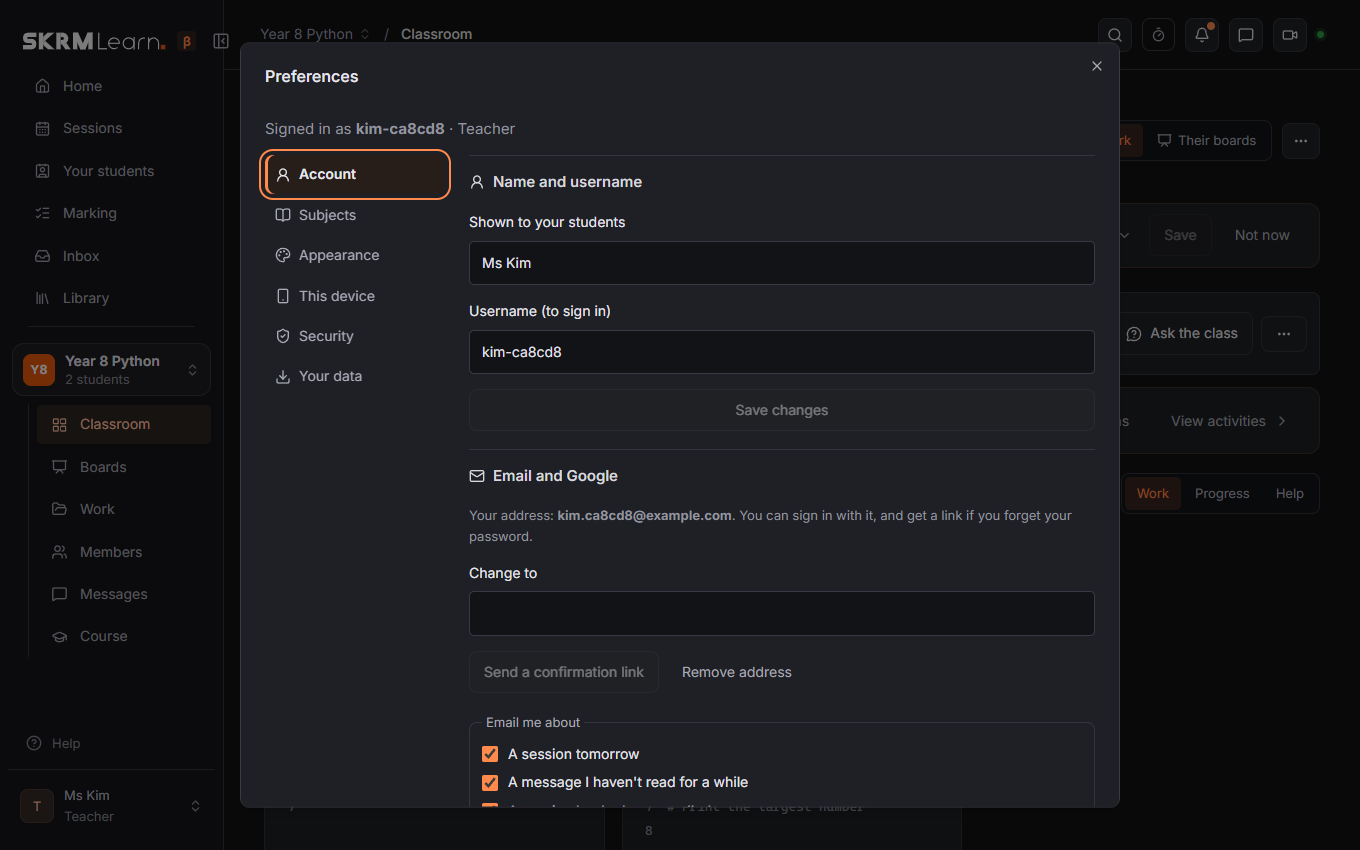
Your name at the bottom of the menu opens Preferences…, a section at a time (their names down the side): Account (your display name, username for teachers, parents and the administrator, email and Google), Subjects (teachers), Appearance (the theme, dark or light), Security (password, two-step sign-in, other devices) and Your data. What you type in one section stays while you look at another.
Teachers, parents and the administrator may add an email address. A link goes to it; opening the link confirms it. From then on the address signs in like the username, and Forgot password? on the sign-in form sends a link to choose a new one. Students have no email: they ask their teacher for a new password.
Email me about
Under Preferences › Account › Email, tick what SKRM Learn may email you about:
- A session tomorrow: parents are reminded of their child's session the day before; teachers get one email at 17:00 listing tomorrow's sessions.
- New homework for my child (parents).
- Homework due tomorrow, not handed in yet (parents): about a day before it is due, if your child hasn't handed it in.
- A message I haven't read for a while: after 15 minutes, once per conversation.
- A session booked or cancelled (teachers): when a student or parent books or cancels.
Continue with Google
Teachers and parents can sign in with Google. An account made this way has no password at first: Set a password in Preferences gives it one, and then Google can be disconnected.
Your plan (teachers)
Everyone starts on Free: a couple of groups of up to ten students, with live code, boards, activities, homework, quizzes, sessions and messages. Pro adds more groups and students, video calls, pictures and files in messages, parents' accounts, email reminders, payment tracking, courses and a bigger library. Your plan… in the account menu shows what your plan includes and how much you use; where something is part of Pro, the button says so.
Try Pro free: once, from Your plan, for a couple of weeks, with nothing to pay and no card. It needs a confirmed email address (Preferences › Account › Email), and each email address or Google account gets one trial. When it ends you are back on Free; nothing is deleted, you just can't add beyond Free's limits.
Paying monthly? Switch to yearly in Your plan shows exactly what you'd pay now (the year, less what's left of the month you've paid) before anything changes. Deleting your account cancels your subscription at the same time. Schools get a code that gives their teachers Pro.
Your data
Download my data gives a file with everything SKRM Learn holds about your account. Delete my account… removes the account and its work; a teacher's groups pass to the administrator to give to another teacher. Student accounts in no class and parent accounts with no child linked are deleted after a year without signing in (with an email address, you are told 30 days before); teachers' accounts are never deleted this way.
Signing in safely
Keep me signed in, under the password: ticked, you stay signed in on that device for 30 days; not ticked, you're signed out when the browser closes. Leave it unticked on a shared computer.
Preferences › Security › Sign out everywhere else signs you out on every other computer, tablet or phone, if you forgot to sign out somewhere.
2-step sign-in (teachers, parents): after your password, SKRM Learn also asks for a 6-digit code from an authenticator app on your phone (Google Authenticator, Microsoft Authenticator, Authy…), so a stolen password alone isn't enough. Turn it on in Preferences › Security: scan the QR code with the app, type the code it shows, and keep the ten backup codes somewhere safe; each works once if you lose your phone. Lost the phone and the codes too? Ask your administrator to turn 2-step off for your account. Continue with Google doesn't ask for it.
Signing out
Sign out in the same menu. Changing your password signs out your other devices.
The app and notifications
Preferences › This device: install SKRM Learn as an app (it opens full screen from its own icon; on an iPhone or iPad, use Safari's Share › Add to Home Screen), and Notify me on this device for new messages, new homework and what SKRM Learn emails you about, when SKRM Learn isn't open in front of you. Each phone or computer is turned on separately. On an iPhone, notifications come once SKRM Learn is on the Home Screen.