Getting started (teachers)
SKRM Learn is an online classroom for tutors and small groups, in any subject: whiteboards, documents written together, homework, quizzes, sessions and video calls in one place, and Python that runs in the browser for programming. This page takes a new teacher through the first session.
1. Create your account
On the front page choose I'm a teacher. You need the sign-up code from whoever runs your SKRM Learn (or a school code), a username, your name as students will see it, a password and your email address. A link goes to the address; opening it confirms it. You can also Continue with Google.
2. Create a group
New here? Home asks How do you teach?: One-to-one: add a student, A group: create it, or Try a sample lesson first: a group of six practice students with a sample lesson in your own subject (solving equations on boards for maths, a piece of writing for English…), to look around before your first real session. The empty Classroom offers the same. It also asks which levels you teach (primary, secondary, exam preparation, university, adults): the Library shows things by level, and new ones start with yours. Change them in Preferences.
A group is one class: its students, activities, boards and sessions. Press New group and choose its subject: Programming, Maths, English, Sciences, Languages, Humanities or something else. The subject sets what the group starts with: the pages it shows, and whether new activities and homework start as code, a document or a board. You can still use every tool: change what it works with (Activities and boards, Activities only or Boards only; activities are the Classroom's activities and homework, in code or as documents) here or later in Group settings › Tools, and choose another format in any activity. Give the group a name, and tick practice students if you want six made-up students to try things on first. They come with a sample lesson in the group's subject (solving equations on boards for maths, a piece of writing for English, and so on; a Python activity for programming): their work so far, a class board and homework to mark.
Teaching one-to-one? Choose New private student instead (in the group card): a space named after the student, for them alone. It has everything a group has (boards, code, homework, sessions, messages, payments, parents) without the class tools, and its invitation link is shown straight away. Private students are listed with all your other students on Home.
3. Invite students
Invite students… shows the group's class code and an invitation link. Send either to your students: they choose I'm a student, type the code (or open the link), and make their own account. Each student appears on your Classroom page as they join.
Or make their accounts yourself: Members › Import a class… takes their names, typed one per line or from a CSV file (from a spreadsheet or the school's system). Each gets a username and a password, shown once to copy or download: hand them out, and they sign in with those.
4. Give a first activity
Write one under Activities › New activity: a title and instructions, then what students do: write in a document, draw on a board, code, answer questions (a quiz) or record a spoken answer. A document is written together, with comments; a board gives each student their own to draw and write on; code has starter code and tests that check the answers. In a group about programming, Getting started › Try a sample activity sends "Find the largest number", with tests, in one click. Groups that work on boards only start from Boards or Homework instead.
5. Teach
On the Classroom page you see every student's work as they do it: their writing, their board or their code. The three lesson modes change everyone's screen at once:
- Explain: students watch while their own work is paused. In programming you code live in front of them (Go live); in other subjects you choose a class board, which opens on every student's screen (Follow me on the board makes their view follow yours).
- Practise: everyone works; you watch and help. Edit on a card lets you type in a student's work with them.
- Review: work is paused while you go through the answers together.
Pause work stops everyone writing, drawing or typing at once (homework carries on), and Resume work lets them go on. Call (top right) opens a video call in a tab of its own.
Where things are
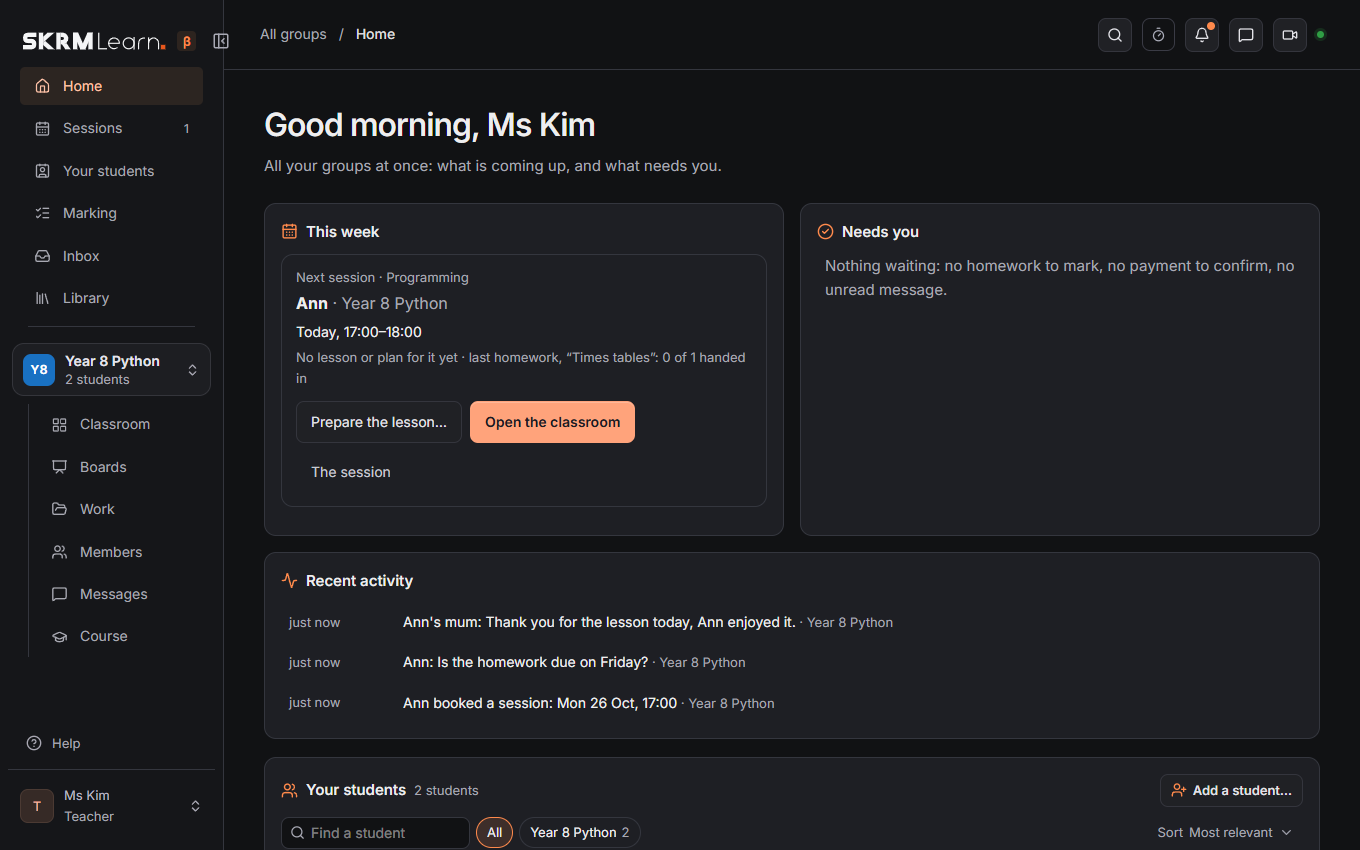
- Home: all your groups at once: this week's sessions, what needs you, what happened lately, and Your students: every student of every group and private space, one row each, with where they are, who is here now, their next session and what waits for you. Find, filter and sort them; click one for their page. Right-click a student (or press ⋯) for their page, code, messages, sessions, Groups… (tick the groups they are in) and Remove from a group; drag a student onto a group card to add them to it. Right-click a group card for its pages. Back always returns to where you were.
- Your students: all of them on one page (Home shows the first few). Marking: every homework handed in, in every group, oldest first: click a student to mark their work.
- Classroom, Boards, Work (Activities, Homework and Quizzes, switched at the top), Members, Messages: the pages of the open group (the menu on the left).
- Library: your own activities, boards, files and courses, for every group. A course's lesson can have a lesson plan: timed steps you go through in class on the group's Course page, each one setting the class timer.
- Progress report on a student's page: what they did in a period, with your comment, to print or save as PDF.
- Your name at the bottom of the menu: Preferences…, Your plan…, Sign out.
- Search (Ctrl+F, or ⌘F on a Mac): finds a student, board, activity or page anywhere, and does things in the group: a new activity or homework, a timer, pause work, go live, invite, start a call.
Next: The classroom · Homework and marking · Sessions