Sessions
The Sessions page: when you are free, who booked, sessions you add, a calendar, and what each session was about. It is at the top of the menu, beside Home and Library, because it covers every group: a teacher sees all their sessions, a student the sessions of all their groups. Showing beside the tabs narrows it to one group (or class); a session's "starts soon" line in a group opens that group's sessions. A session opened from All groups keeps its own group: its plan, board and homework are that group's. The group's Course (the plan it follows, lesson by lesson) is its own page in the group's menu.
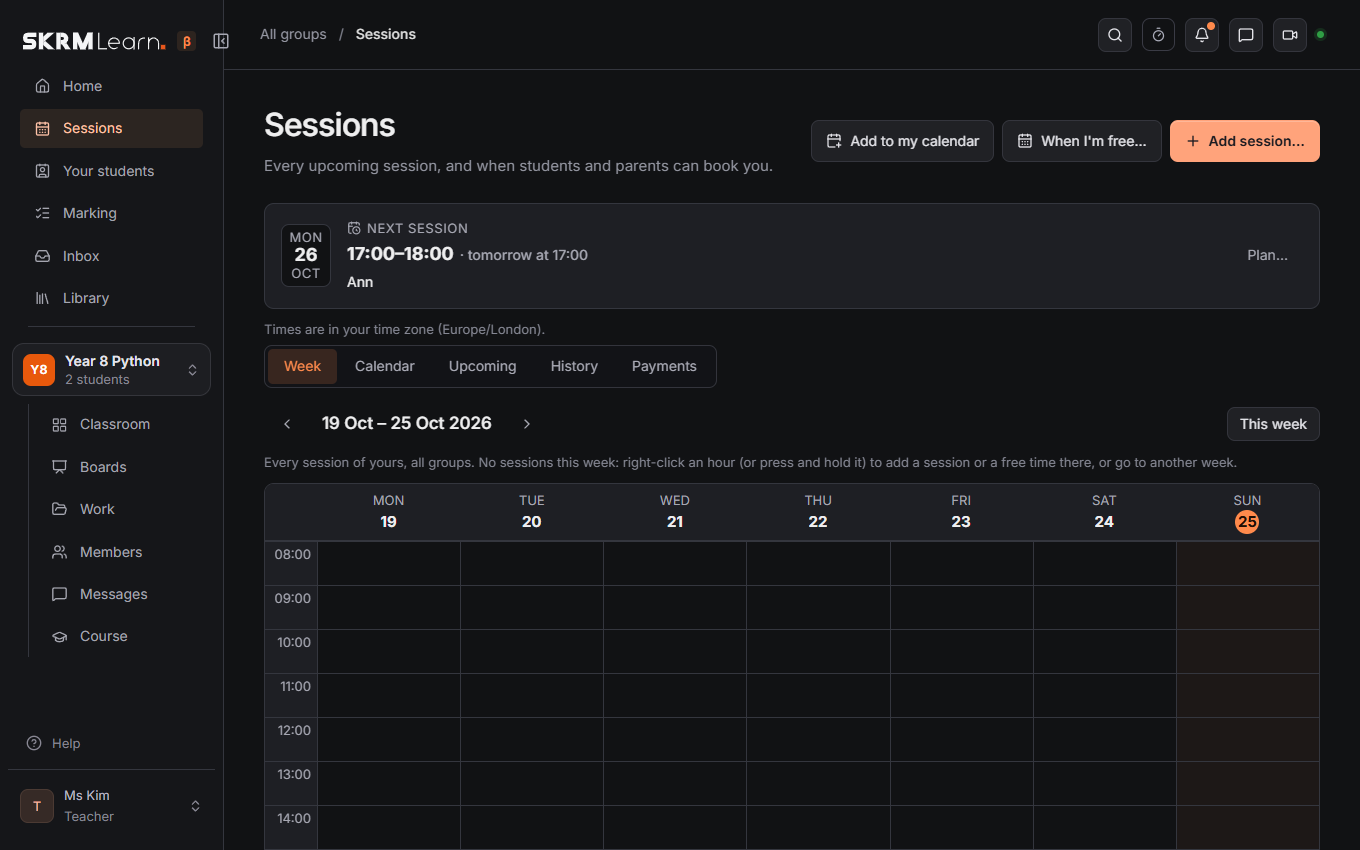
Your next session
At the top of the page: when the next session is, with whom, how long until it, and its topic once the teacher has set one. From ten minutes before a session until it ends, the card shows Call (the teacher) or Join call (students, once the teacher has started it), and a line at the top of your other pages says the session is about to start. The Sessions entry in the menu counts your sessions today.
Times are always shown in your own time zone. If your teacher's is different, the page says so.
What a session is about
Each session has a page of its own: Plan… (teachers) or Details (students and parents) on the card or in the list. Before it, the teacher chooses the Lesson it teaches (one of the group's course, or any other lesson from Library › Lessons; its title becomes the topic if none is written), writes what to do For this session, and attaches material: a place on a board, a homework. Students see the topic, the lesson and the material, and open the material from there. When booking, a student or parent can say what they would like to cover; the teacher sees it on the session, and it can be changed until the session. After the session, Write up… in History adds the note and who came.
Teachers: a session's page has three parts. Prepare is the form above. Teach has Open the classroom, the session's board and its plan: Make a board for this session makes a board named for it, for a worksheet or a PDF you annotate with them, and it stays with the session. Review says what happened in it (boards drawn on, activities worked on, homework given, quizzes answered) and, once it has ended, Write it up…. The page opens on the part that fits the time. In the Classroom, the line of the session on now has The session; with none on, ⋯ › Start a session now starts one, to teach without booking first: choose how long, and whether its students and their parents are told. Undo in the note afterwards takes it away again, and so does Undo start on the session's line for the first 15 minutes. In a session's record, Teach links to the classroom, its lesson and the group's activities, and Review links each line to the board, activity, hand-ins or answers.
For two hours after a session ends, the teacher's page asks How did it go?: one click marks it held, a no-show or excused (an excused session does not count for payments). Where payments are tracked, a student with no sessions paid for left is told so gently when booking, and the teacher's list marks their session unpaid.
When I'm free (teachers)
When I'm free… sets your weekly times: paint the hours you are free on the week (click or drag), or type exact times below it. Days off there closes a run of days (holidays) in one go: no times are offered in them, and sessions already in them stay for you to cancel if need be. A weekly session skips a week when you cancel "this one". It also sets how long a session is, how many hours ahead one must be booked and cancelled, and how many sessions a student may have booked at once. The times are in your own time zone, and the same for all your groups.
Right-click menus (teachers)
Right-click a session, a free time or a day, on the Week tab or the calendar, for what can be done there: Plan…, Move to…, Cancel, Held or No-show once it has ended; Book for a student… or Not free on a free time; Add a free time, Add a session… or Day off on a day or an empty hour. On a touch screen, press and hold; with a keyboard, the menu key.
Your week (teachers)
The Week tab, where the page opens on a wide screen: the hours down the side (the whole day: scroll for the early morning or the evening; each week opens at its first session or free time), the days across, every session of yours in all your groups as a block (a colour per group), your free times in green and the times you closed hatched. Click a session for its plan. Drag a session to another time to move it (you are asked first; the student's parents are emailed). On a phone the week is a list, day by day. Move to in a session's plan does the same by typing a date and time.
Confirming bookings (teachers)
Under When I'm free…, Bookings can be Confirmed at once (as before) or I confirm each one (part of Pro). Then a booking is a request: it holds the time, the student or parent sees "waiting for your teacher", and you Accept or Decline it on the session, in the list, on the calendar or from its right-click menu. Declining frees the time. Unanswered requests can be kept until you answer, or lapse after some hours, or some hours before the session; a request still open when its session would start closes anyway. Students you tick as regulars there have their bookings confirmed at once.
Each session keeps a short History (in its Plan…): who booked or asked, accepted, moved, cancelled or marked it, and when.
The bell
The bell at the top of every page gathers what needs you across all your groups, with the answer right there: a booking to Accept or Decline, a move asked for, a session that has ended (Held, No-show or Excused), homework to mark and payments to confirm. Its number counts only these, and shows in the browser tab's title too; each goes once dealt with. Below them, Recently lists what you were told: a session accepted, moved, cancelled or added, a request that lapsed. Students and parents see their own: a booking accepted or declined, a session moved, cancelled or added by the teacher, and a time they waited for that is free now (Book it). Tick Tell me with a browser notification in the bell to hear of new items while the page is open. While bookings wait, the Sessions page shows them in a band at the top, and the Sessions menu entry counts them.
Asking to move a session
Students and parents cannot move a session themselves, but they can ask: Details on the session, then Ask to move to one of the teacher's free times. The teacher sees the ask on the session and Accepts (the session moves there) or Declines. An ask can be withdrawn until it is answered.
The calendar
A month at a time, each day coloured: Free times, Partly booked, Fully booked, with "2 free · 1 booked" written in it. For students and parents, a day whose free times are all too soon to book says Too soon to book instead of "Full". Press a colour in the legend to see only those days. A day opens beside the month with its times. With the keyboard, the arrow keys move between days, Home and End to the start and end of the week, Page Up and Page Down between months. The teacher sees who booked, can Add a free time this day, mark a time Not free, and cancel sessions. Students and parents Book a free time or cancel their own.
Booking
A student (or a parent for their child) books a free time in the next four weeks, at least 2 days ahead (you can change this under When I'm free…). When the same time is free the following weeks too, a tick books it for them all at once (a regular session). A time that is taken can be waited for: Tell me if it frees up on the calendar; when it does, the Sessions page says so (parents are emailed too) and it can be booked from there. They are asked "Book this session?" first, so a stray tap books nothing; then the time is taken for everyone. On your calendar, free times too soon to book say so. Cancelling asks first too. Their own bookings can be cancelled up to the hours you set; after that, "message your teacher". The teacher is emailed about each booking and cancellation (if they want to be).
Adding sessions
Add session…: a session for the whole group or one student, once or every week for a number of weeks. A weekly session can be cancelled "this one" or "this and the rest".
Reminders
Parents are emailed the day before their child's session; teachers get one email at 17:00 with tomorrow's sessions. Switch these on or off under Preferences › Account › Email.
Add to my calendar
Add to my calendar gives an address for Google, Apple or Outlook calendar to follow: your sessions appear there and stay up to date. New address stops the old one. Download once saves a calendar file instead.
History and payments
History lists the sessions that took place. Write up… gives a session its topic, a note, who came and what was set. Payments: sessions paid for and left, noted by parents or students and confirmed by the teacher. Teachers keep them under Sessions › Payments: every student in every group (or the group chosen in Showing), what waits to be confirmed first, with All, To confirm and To pay for to narrow the list. Click a student to see their payments, Confirm one, or Add a payment.
Next: Messages · For parents